 Retirement Planner Guide
A tour of the window
Everything happens in one window. On the left are the people you plan for and their strategies; on the right are the inputs for the selected strategy and the projection they produce.
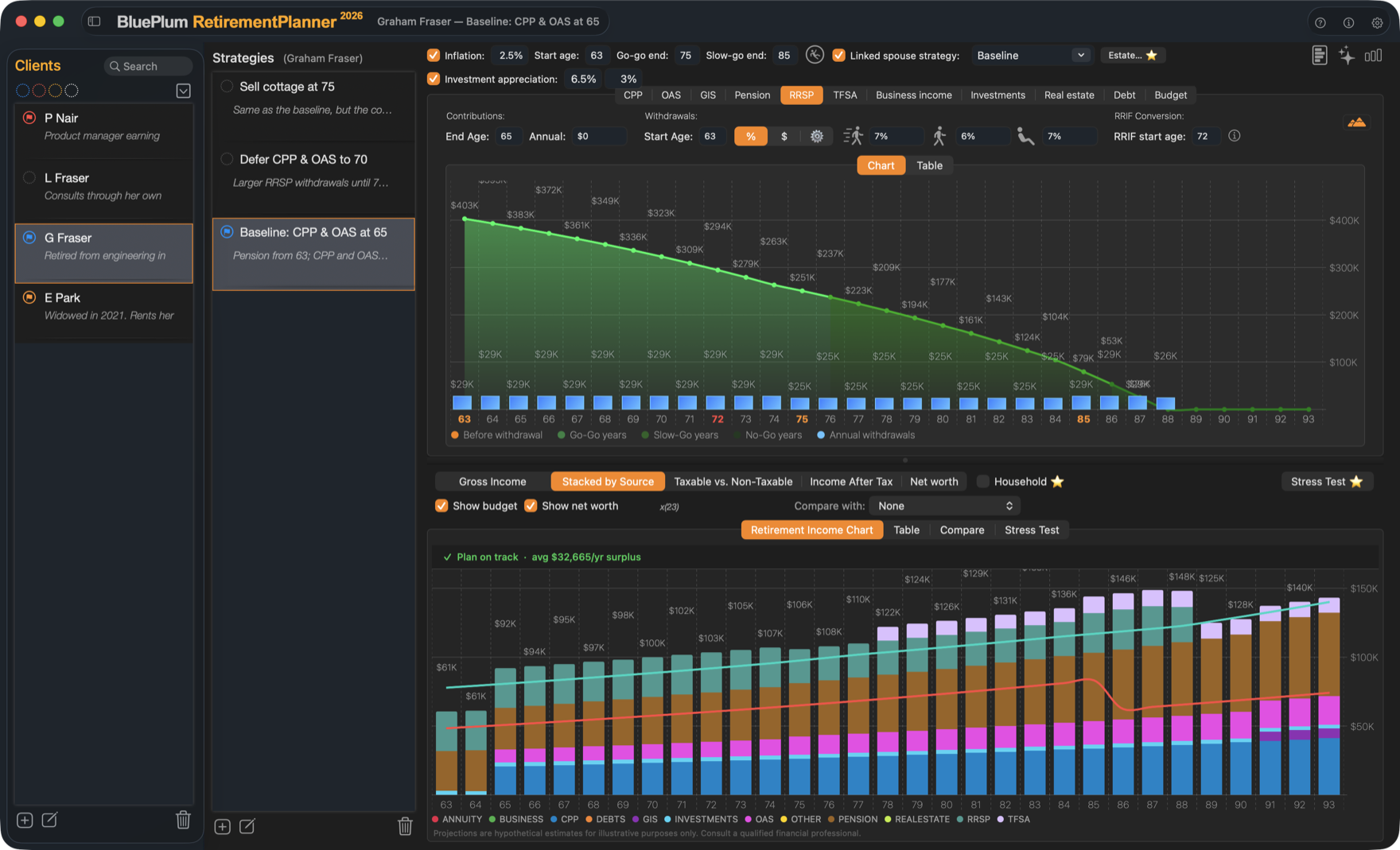
- 1Clients. Everyone you plan for. Select a client to see their strategies. See Clients and profiles.
- 2Strategies. The scenarios for the selected client, such as “Baseline: CPP & OAS at 65” and “Defer CPP & OAS to 70”. See Strategies.
- 3Settings bar. Inflation, the retirement start age, the go-go and slow-go ages, investment returns and the linked spouse strategy.
- 4Income-source tabs. One tab for each source: CPP, OAS, GIS, Pension, RRSP, TFSA, Business income, Investments, Real estate, Debt and Budget.
- 5The selected source. Its settings for this strategy, with a chart and a table of the years ahead.
- 6Strategy tools. The client report, the withdrawal experiments and the chart settings.
- 7Chart options. The chart type, the budget and net-worth lines, household mode, comparison and the stress test.
- 8Result tabs. Retirement Income Chart, Table, Compare and Stress Test.
- 9Plan status. Whether income after tax covers the budget in every year.
- 10The retirement income chart. Every source added up, for each age. See The retirement income chart.
- 11Add, edit and delete. The buttons under each list.
- 12Tour, information and settings. Start the guided tour, see the app version and your plan, or open Preferences.
The title bar
Next to the app name, the title bar shows the client and strategy you are working on, for example Graham Fraser — Baseline: CPP & OAS at 65. The button at its left edge hides and shows the client list.
Make room for the charts
- View ▸ Toggle Sidebar (⌘1) hides or shows the client list.
- View ▸ Toggle Strategies (⌘2) hides or shows the strategy list.
- ⇧⌘← hides the lists one at a time; ⇧⌘→ brings them back.
- Drag the divider between the income-source panel and the income chart to give either more height.
Saving
There is no Save command: every change is saved as you make it, and a thin strip under the toolbar flashes green when the file has been written. You can choose to save in the background instead; see Preferences. Closing the window quits the app.
Menus and shortcuts
| Menu | Commands |
|---|---|
| Retirement Planner | About Retirement Planner, Settings... (⌘,), Manage Subscription..., Backup ..., Restore ..., Import & Merge ..., Quit (⌘Q) |
| Edit | Undo (⌘Z) — undoes deleting a client or strategy — plus Redo, Cut, Copy, Paste, Delete and Select All |
| Window | Minimize (⌘M), Close (⌘W) |
| View | Toggle Sidebar (⌘1), Toggle Strategies (⌘2), View most recent AI Exchange |
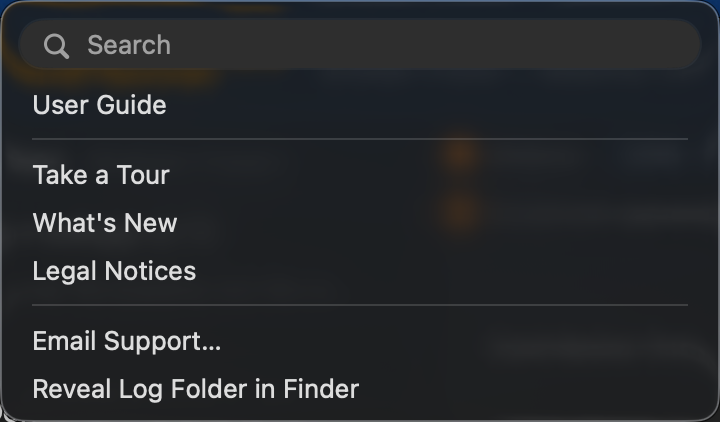
| Help | User Guide (⌘?), Take a Tour, What’s New, Legal Notices, Email Support…, Reveal Log Folder in Finder |
In the client and strategy forms, ⌘S saves and closes the form. In a list, the Delete key deletes the selected record.