 Retirement Planner Guide
Where your data is kept
All clients and strategies are kept in one data file on your Mac. Nothing is stored online and no account is needed. This chapter covers where the file is, the automatic backups, moving to another Mac and, on the Advisor plan, keeping the file in a folder of your choice.
Where the file is
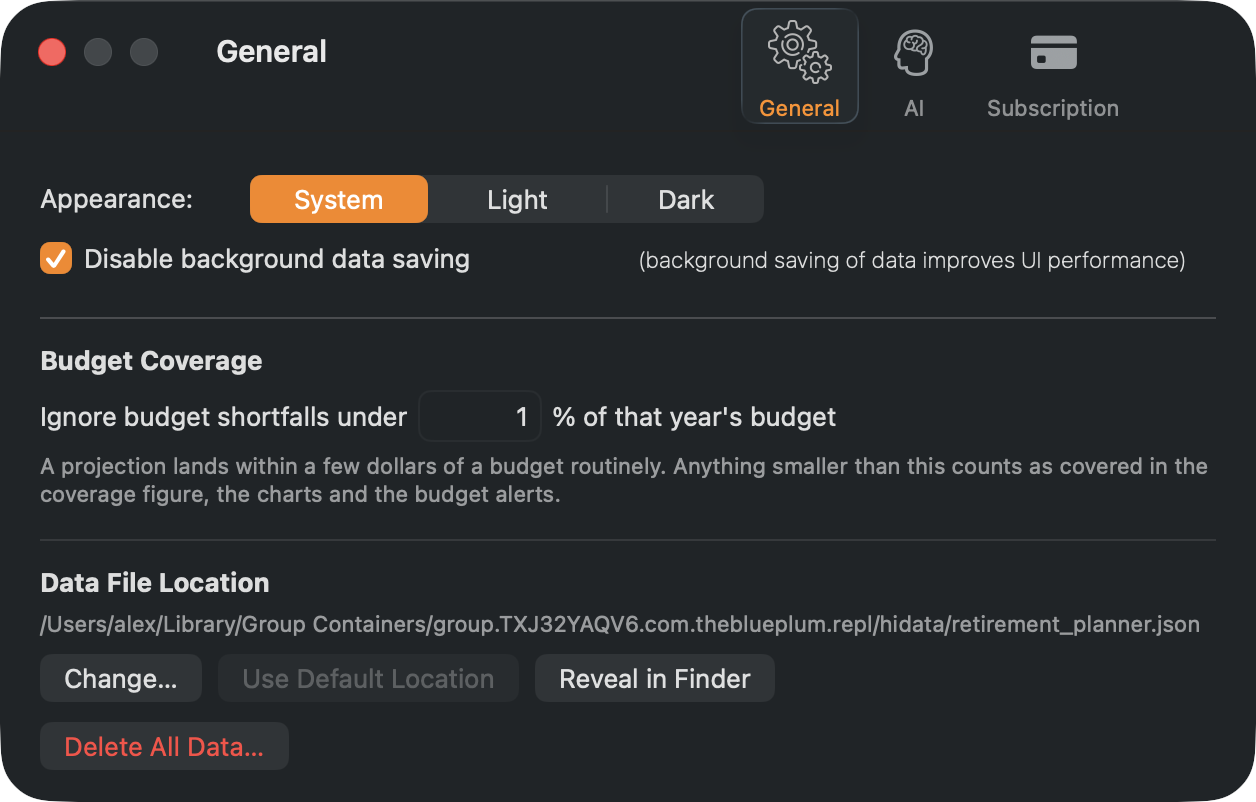
The file is called retirement_planner.json. Its location is shown under Data File Location in Settings... ▸ General; click Reveal in Finder to open the folder.
Automatic backups
Once a day, before the first change is saved, the app copies the previous day’s file to a backups folder next to it. The ten most recent copies are kept, named by date.
Back up and restore
- Retirement Planner ▸ Backup ... saves a copy of all your data to a file you choose.
- Retirement Planner ▸ Restore ... replaces all current data with a backup — your own, or one of the automatic daily copies. You are asked to confirm first.
Restoring replaces everything in the app with the backup. Make a backup of the current data first if you might want it back.
Import & Merge
Retirement Planner ▸ Import & Merge ... adds the clients and strategies from another data file or backup without replacing yours — for example, to bring together plans made on two Macs. Records already in the app are left as they are, and your plan’s client and strategy limits still apply.
Move to another Mac
- On the old Mac, choose Backup ... and save the file somewhere you can reach from the new Mac.
- Install Retirement Planner on the new Mac and sign in to the App Store with the same Apple ID. Use Restore Purchases if your plan isn’t found.
- Choose Restore ... and pick the backup.
Keep the file in your own folder Advisor
On the Advisor plan, you can keep the data file in any folder — a shared drive, a synced folder or an encrypted volume.
- In Settings... ▸ General, click Change….
- Choose a folder and click Use This Folder. The app creates a
hidatafolder inside it. - If the folder already holds a data file, choose Use Existing Data to open it or Move Current Data Here to replace it with yours.
Use Default Location moves back to the standard folder. If that folder already holds a data file, choose Use Default Data to open it or Move Current Data Back to replace it. The file in the previous folder is left where it was.
If you keep the file in iCloud Drive, turn off Optimize Mac Storage for that folder, so the file is always on the Mac. If another Mac changes the file while the app is open, the app reloads it — or, if you have unsaved changes, asks whether to Reload or Keep Mine.
Start over
Delete All Data… in Settings... ▸ General removes every client and strategy. A safety copy of the data is saved in the backups folder first, so you can bring it back with Restore ....
If the file can’t be read
If the data file is damaged, the app keeps it, renamed with .corrupt and the date, and starts with an empty file. Use Restore ... with the latest daily backup to get your data back.