 Retirement Planner Guide
Comparing strategies
The Compare tab puts up to four of a client’s strategies side by side and measures them against one of them: which leaves more to spend, which pays less tax, which leaves more behind — and which settings make the difference. For a quick look at a second strategy on the chart itself, use Compare with.
Open the Compare tab
- Select the client and a strategy.
- Click Compare, the tab between Table and Stress Test.
The client’s strategies appear as coloured chips above the results, up to four of them. The strategy selected when you first open the tab is the reference: the one the others are measured against. Each strategy keeps its colour on every page of the tab.
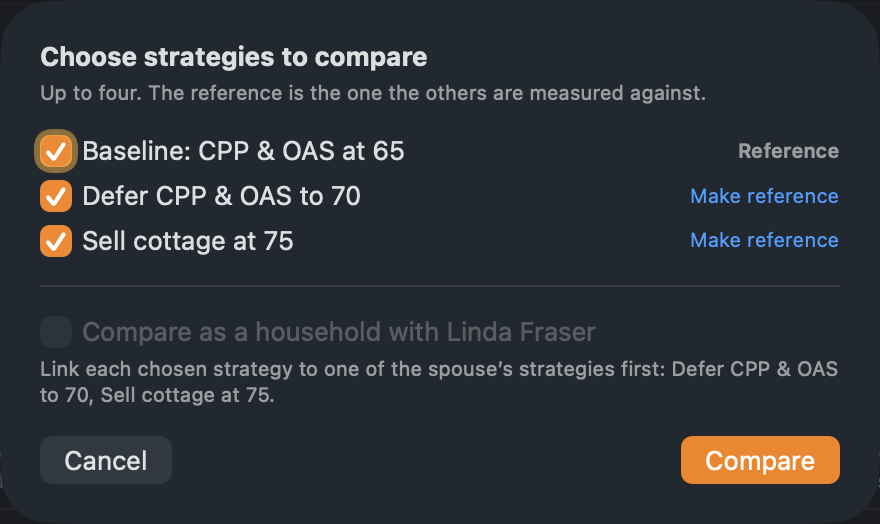
- To choose other strategies, click Choose strategies…, tick up to four, click Make reference beside the one the others should be measured against, then click Compare.
- To change the reference or drop a strategy, right-click its chip and choose Make this the reference or Remove from the comparison.
- The menu at the top right shows amounts in Future dollars, as the projection has them, or in Today’s dollars, with inflation taken out at the reference strategy’s rate.
The tab shows three pages: At a glance, Year by year and What’s different. The comparison is worked out on copies of the strategies, the same way as the retirement income chart, so nothing you look at here changes a strategy.
At a glance
The first page sums up each strategy over the whole plan. Under each figure is its difference from the reference — blue where the strategy does better, orange where it does worse — and ● marks the best result in each row.
| Row | What it measures |
|---|---|
| After-tax income, all years | Everything there is to spend, added up over the plan. |
| Income tax, all years | Federal and provincial tax, including the OAS recovery tax. |
| Net worth at the last age | What is left at the end of the plan. |
| Tightest year against the budget | The year with the smallest surplus over the budget, and its age. Negative is a shortfall. Shown when a strategy has a budget. |
| Years short of the budget | Years that miss the budget by more than the shortfall tolerance in Preferences. |
| Catches up with the reference | The age from which the running total of after-tax income is level with the reference or ahead, for good. |
| Stress test: chance of success | From each strategy’s last stress test. Shown once any of them has one. |
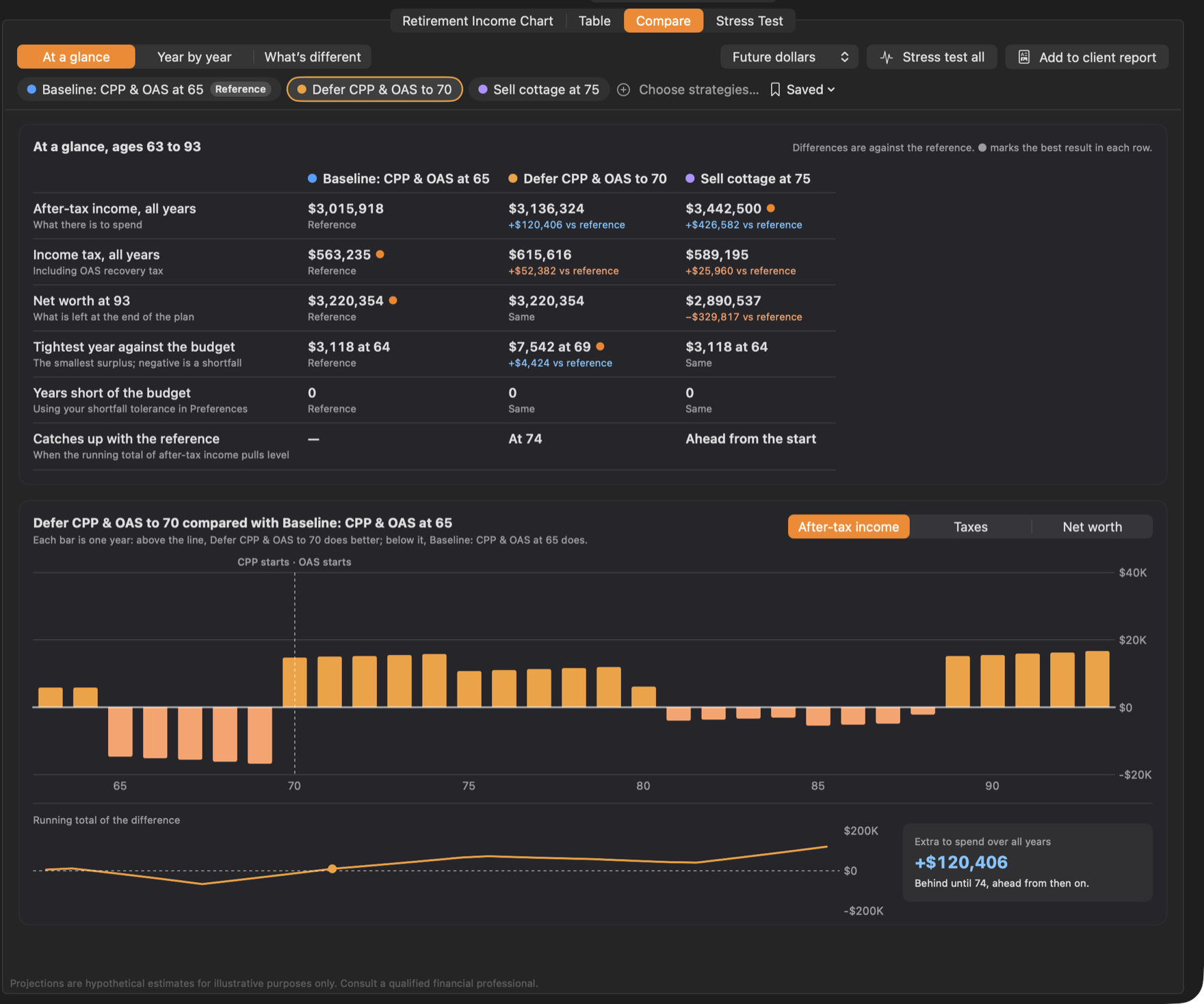
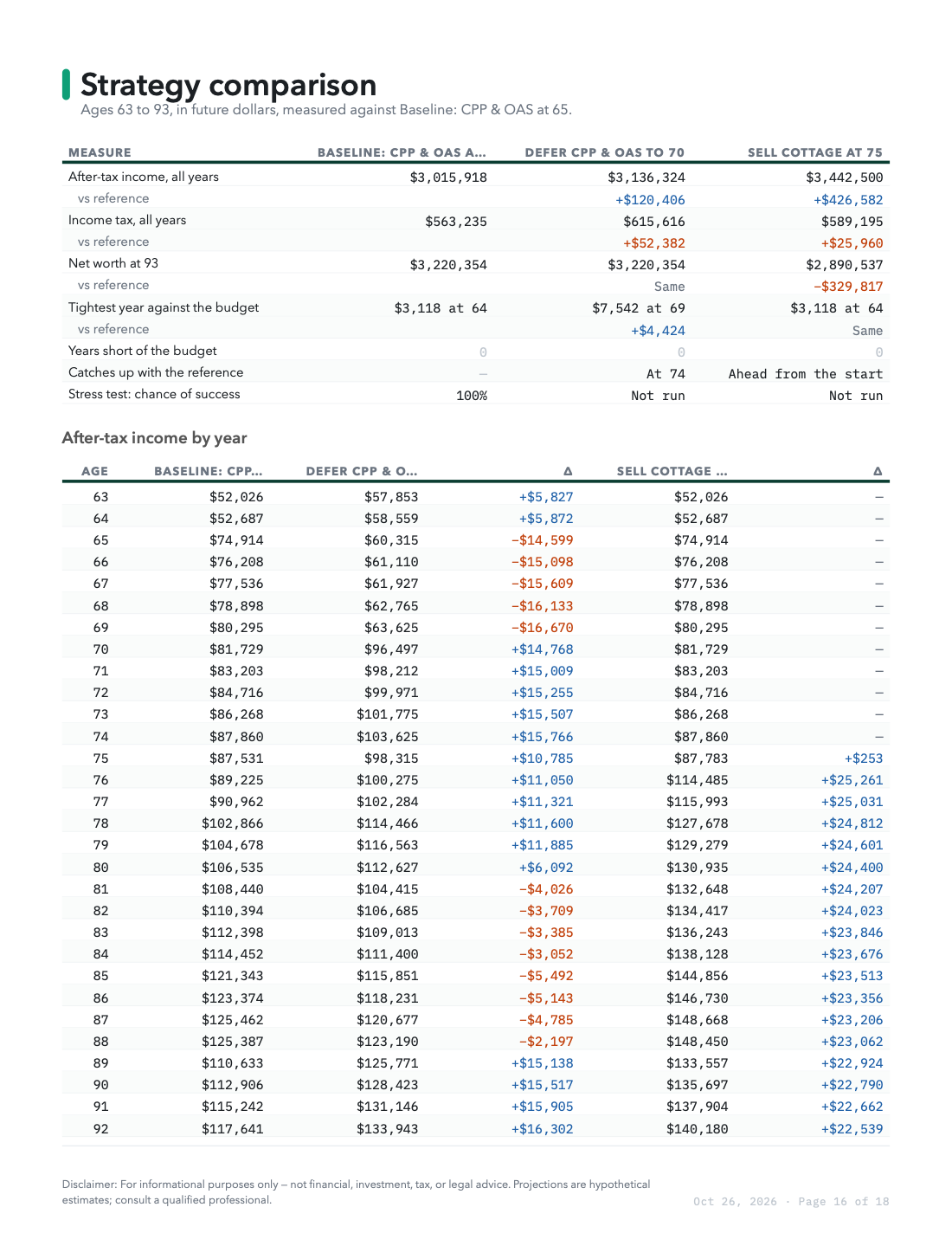
Deferring CPP and OAS to 70 gives Graham less from 65 to 69 and more from 70, so its running total is behind the baseline at first and catches up at 74. Over the whole plan it leaves him more to spend, and pays more tax. Selling the cottage at 75 adds the most income, but leaves less net worth at the end: the cottage is no longer in it.
Below the scorecard, a chart shows one strategy against the reference, year by year: above the line it does better, below the line the reference does. Click a strategy’s chip to show it, and switch between After-tax income, Taxes and Net worth. Dashed lines mark what happens differently in that strategy, such as CPP starts or Lakeside cottage sold. Under the bars, the running total shows where a strategy that starts behind pulls ahead, and the box beside it gives the total.
When the strategies retire at different ages, the totals start at the first age every strategy is retired. Salary is not part of a projection, so a strategy still working would show almost no income in those years. They are shown as Working on the Year by year page.
Year by year
The second page lists every year for one measure at a time — After-tax income, Surplus over budget, Gross income, Taxes or Net worth — so each column has room for its full name. Each strategy after the reference has a Δ column with its difference, in dollars or, from the menu beside the measures, in percent.
The What happens column names the events of each year: retirement, CPP and OAS starting, the first RRIF minimum withdrawal, a property sold. An event that only some strategies have is named with those strategies. The last row adds the years up, or for net worth gives the last year’s figure.
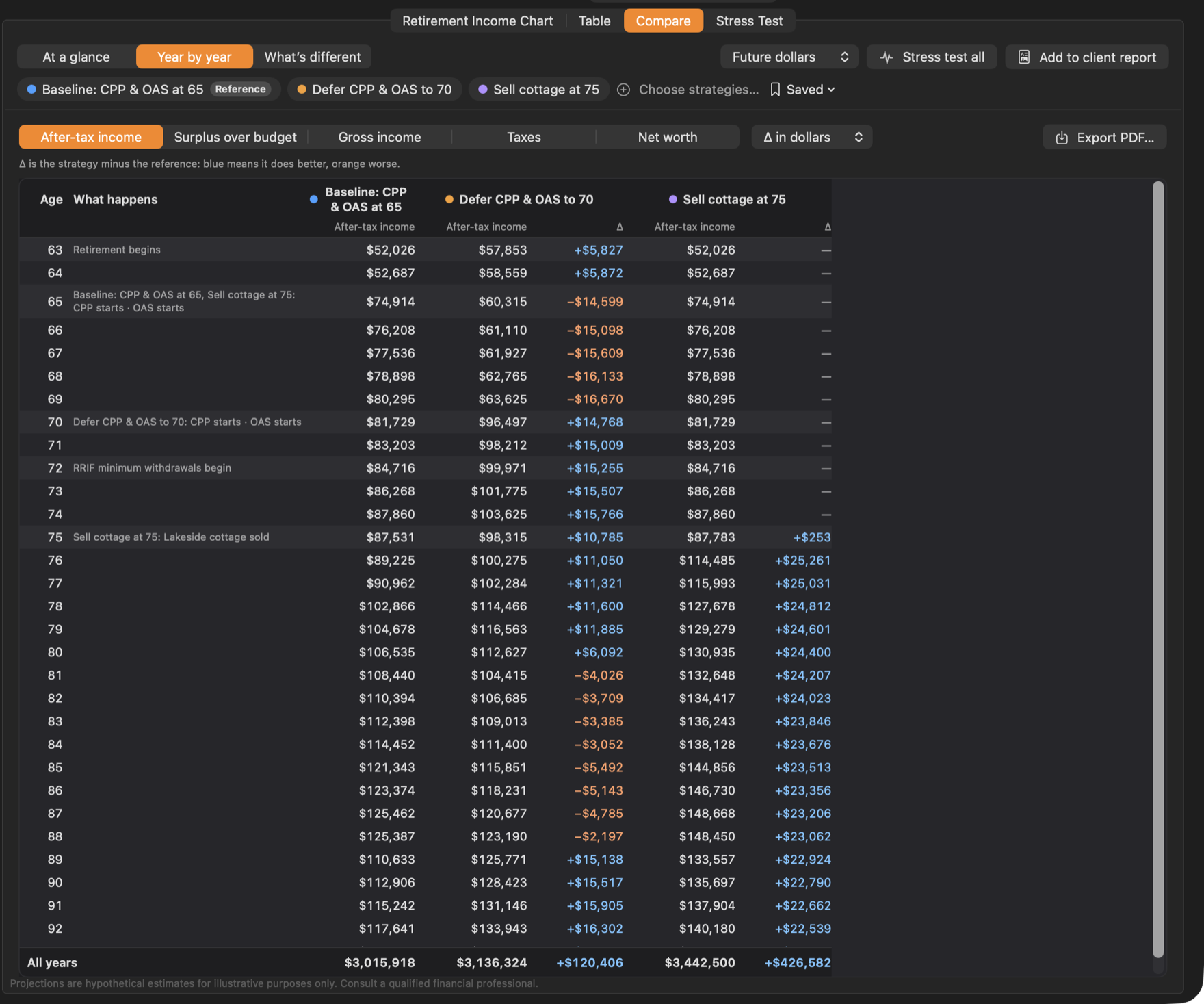
Click Export PDF… to save the table as a PDF.
What’s different
The third page lists only the settings that differ between the strategies, grouped by the screen they are set on, with each strategy’s value. Values that differ from the reference are highlighted in that strategy’s colour.
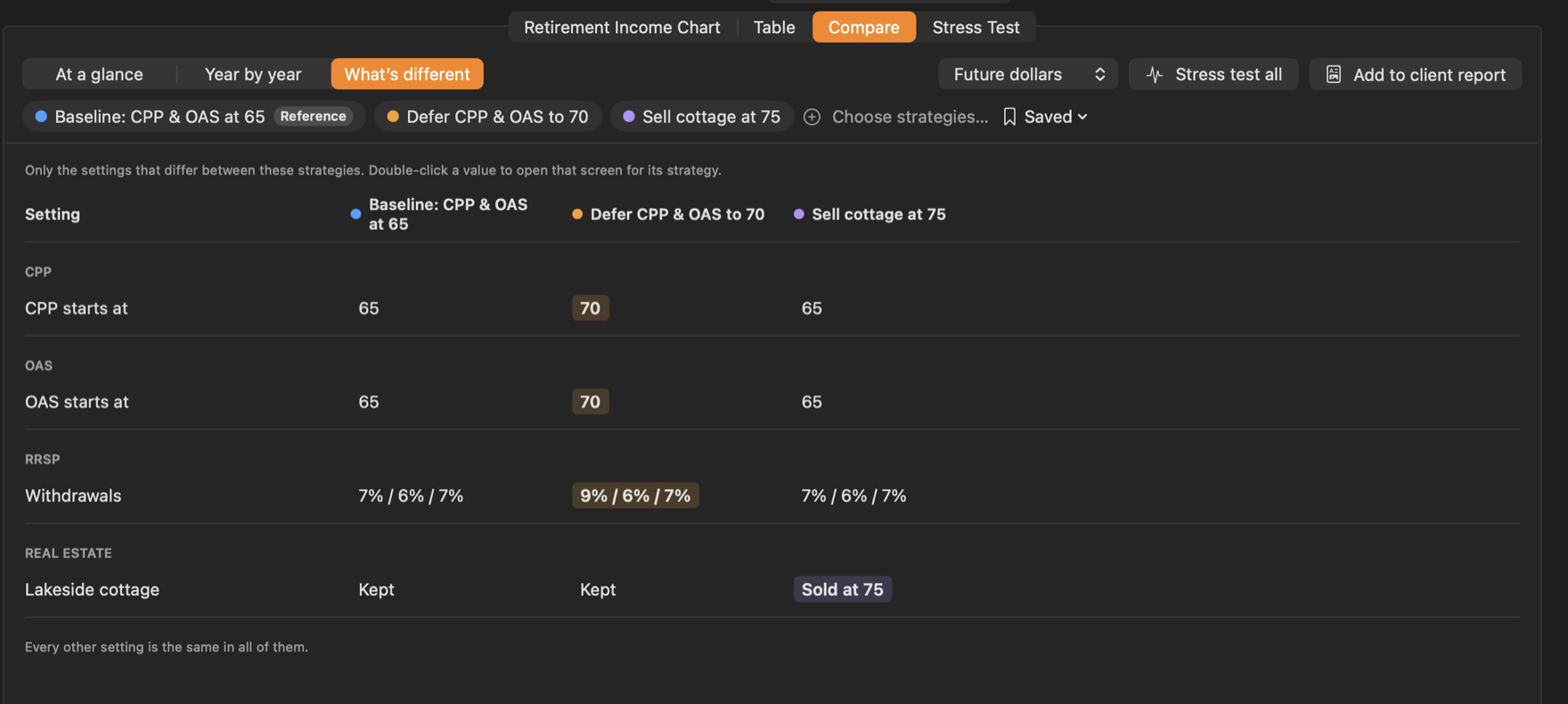
Double-click a value to open that setting: the strategy is selected and its tab shown. Strategy settings open the strategy form, and estate choices open Estate & Survivorship.
Compare as a household
For a client with a spouse, tick Compare as a household in Choose strategies…. Each strategy is then paired with the spouse’s strategy it is linked to, and the couple is compared as in household mode: combined income, tax and net worth, with pension splitting set as in the household controls, and through the years after the first death. Every compared strategy must be linked to one of the spouse’s strategies; the sheet names any that are not. See Spouses and partners.
Saved comparisons
To keep a comparison, choose Saved ▸ Save this comparison… and give it a name. It is saved with the client in the data file. Choose it from the Saved menu to bring back the same strategies, reference and household setting. Saved ▸ Delete removes one.
Stress test every strategy
Click Stress test all to run the stress test on every compared strategy, one after another, with the same settings. Each strategy’s result is saved with it, replacing its previous stress test, and the scorecard shows each strategy’s chance of success.
In the client report
Click Add to client report to create a client report with a Strategy comparison section: the scorecard, after-tax income for every year with the differences, and the settings that differ. Once the Compare tab has been opened for a client, the section can also be chosen from the report button, as Strategy comparison.
Compare two strategies on the chart
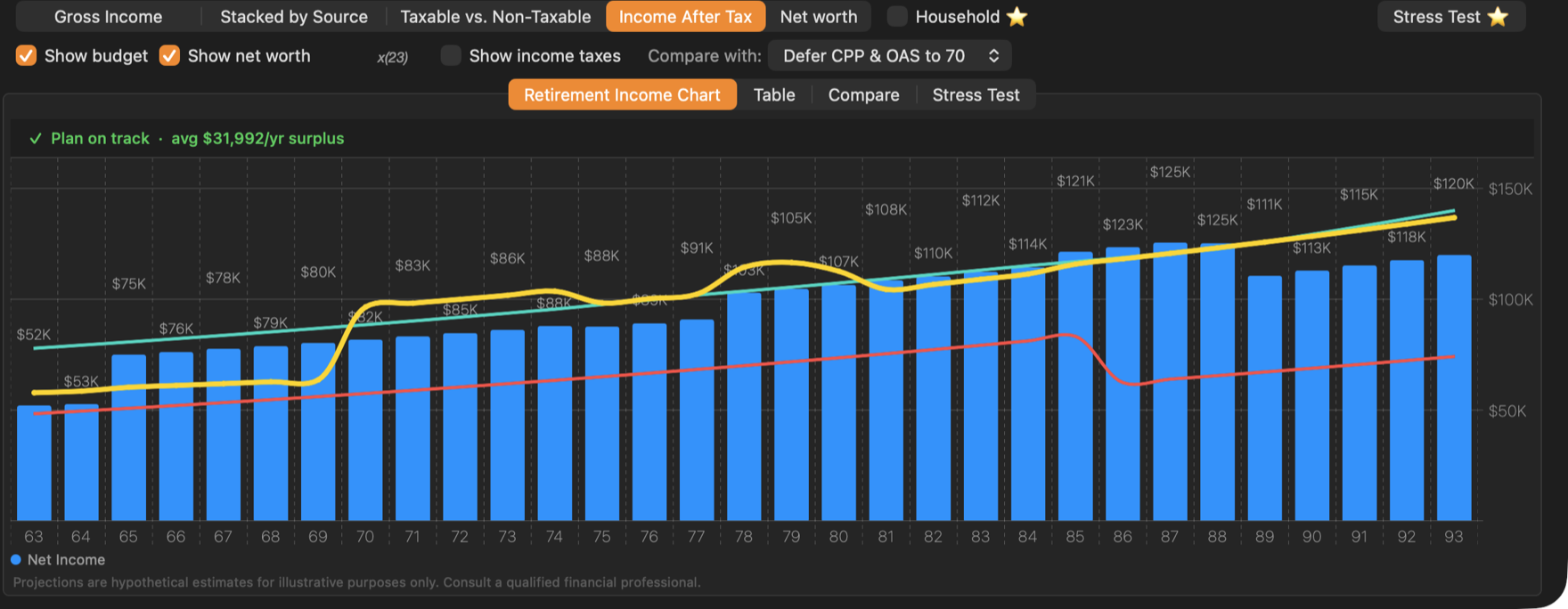
For a quick look, Compare with, above the chart, draws a second strategy of the same client over the first:
- Select the client and the first strategy.
- In Compare with, choose another of the client’s strategies.
The second strategy appears as a yellow line over the bars of the first. It follows the chart type: gross income, income after tax, taxes or net worth.
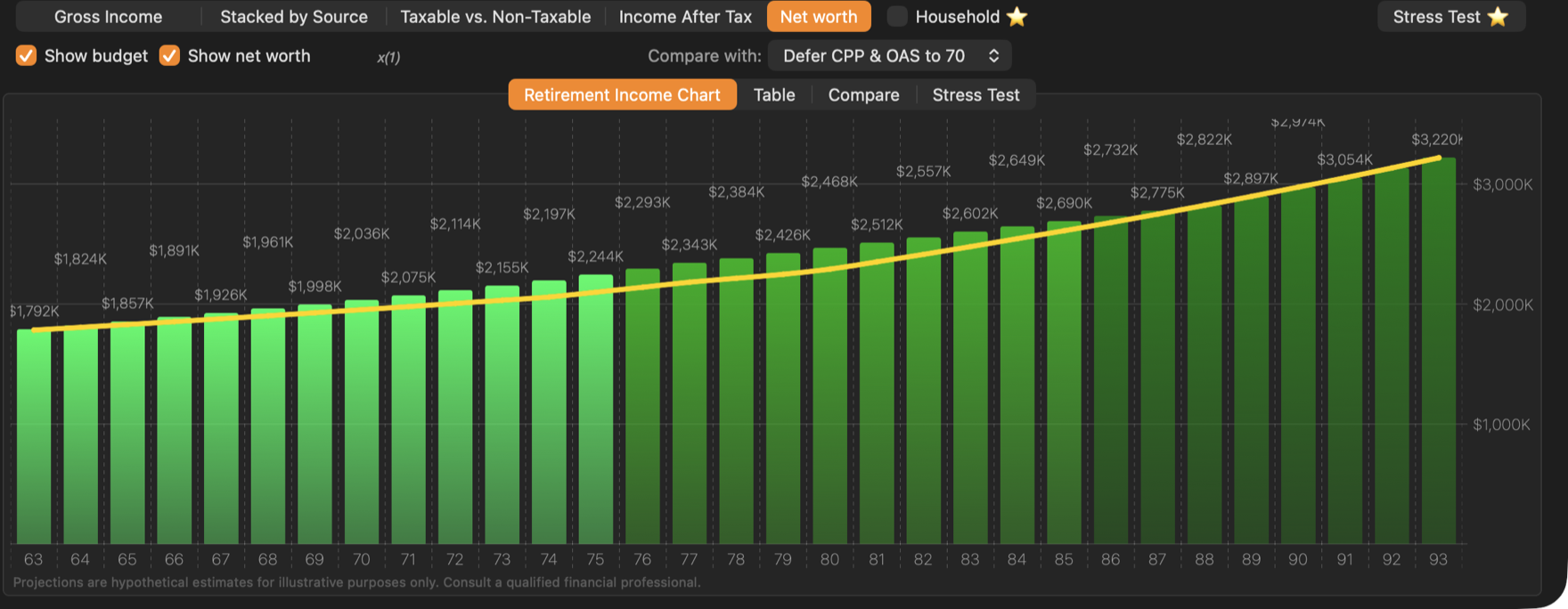
Choose None to stop comparing.
Compare in the table
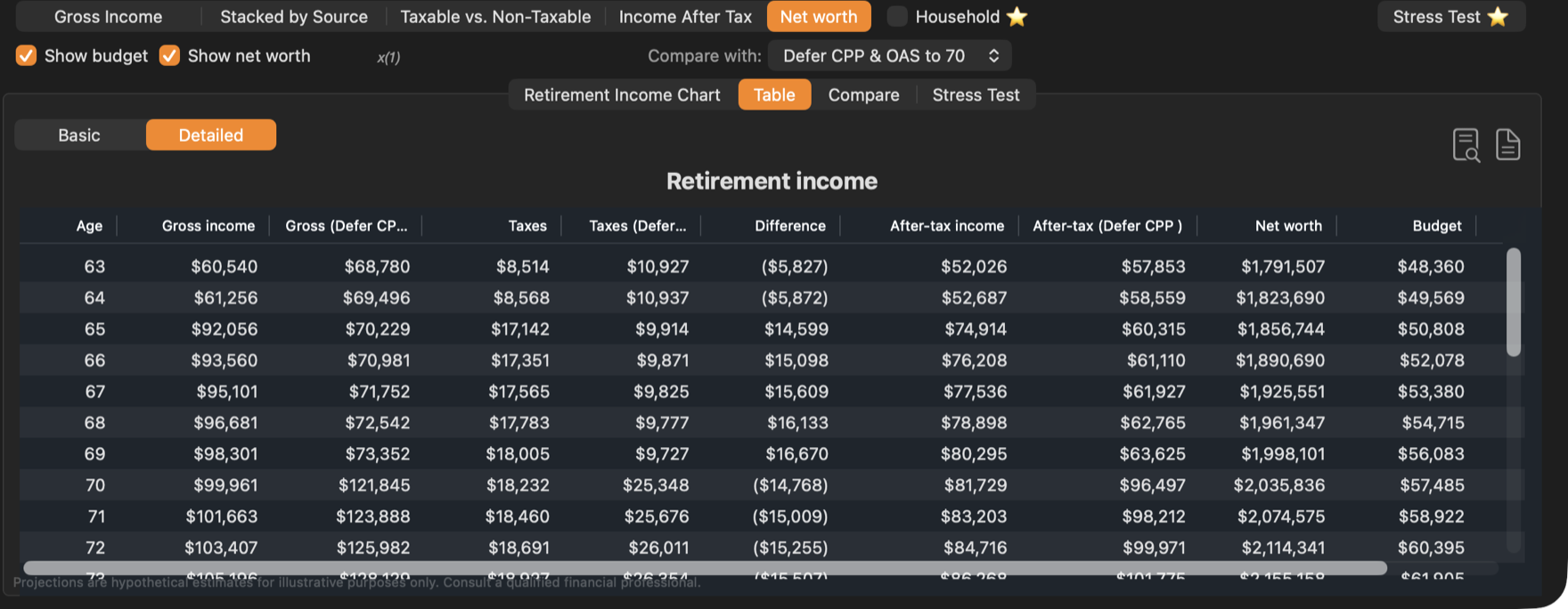
With Compare with set, the Detailed table shows both strategies side by side: Gross income and Taxes for each, the Difference in income after tax, then After-tax income and Net worth. Columns headed with the other strategy’s name (shortened) belong to the strategy you compare with. Difference is this strategy’s income after tax minus the other’s, so it is negative where the other strategy gives more. Net worth is for the selected strategy.
Compare with is not available in household mode. To compare couples, use the Compare tab with Compare as a household.