 Retirement Planner Guide
Strategies
A strategy is one way a client could retire: when to stop work, when to take CPP and OAS, how much to draw from each account, and what to spend. Give a client several strategies to compare the choices on the same facts.
The strategy list
The middle list shows the selected client’s strategies, with the name in brackets at the top — (Graham Fraser). Each row shows the strategy name, the first line of its notes and its flag. Select a strategy to see its settings and projection on the right.
In the demo data, Graham Fraser has three strategies: Baseline: CPP & OAS at 65, Defer CPP & OAS to 70 and Sell cottage at 75.
Add a strategy
- Select the client.
- Click the + button under the strategy list.
- Enter a Name and, if you like, Notes and a flag, then click Save (⌘S).
- Set up the strategy with the settings bar and the income-source tabs.
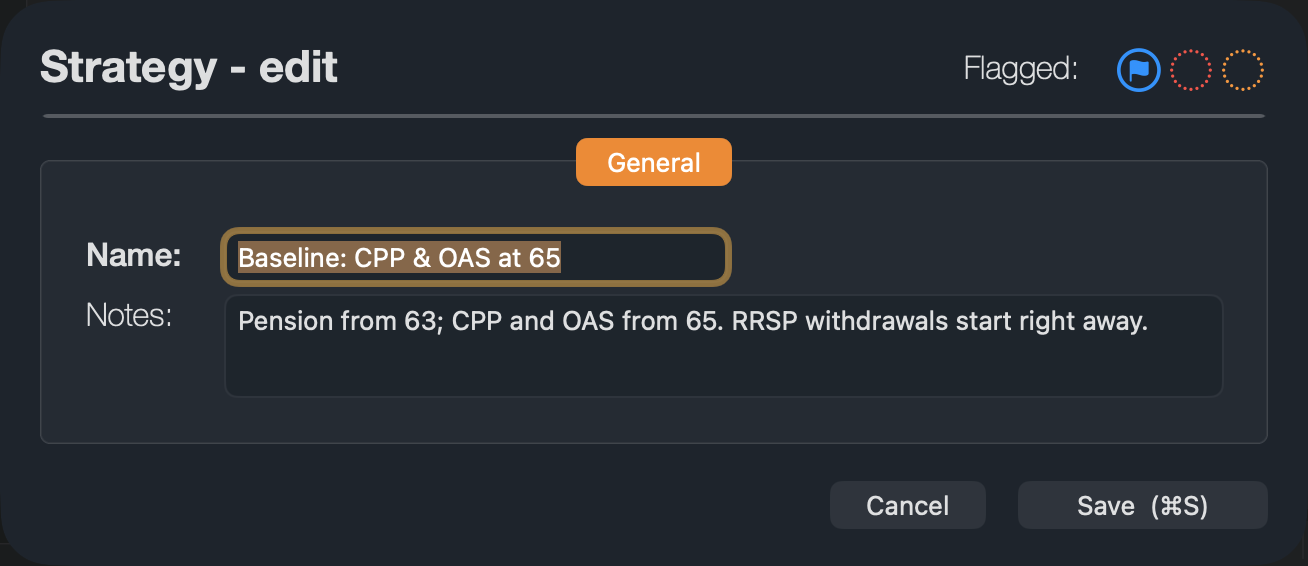
Strategy names must be different for each client; a new strategy with the same name as an existing one is not added. A client always has at least one strategy: if you delete the last one, an empty strategy named (default) takes its place.
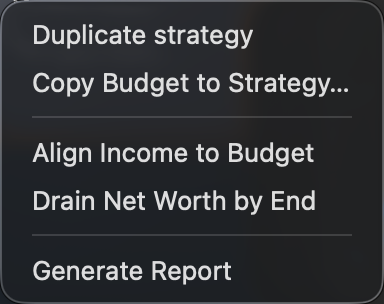
The quickest way to try a variation is to right-click a strategy and choose Duplicate strategy, then change only what differs.
The strategy menu
Right-click a strategy for these commands:
- Duplicate strategy — a copy named “(Copy)”, with every setting and the budget.
- Copy Budget to Strategy… — described below.
- Align Income to Budget and Drain Net Worth by End — see Withdrawal experiments.
To edit a strategy’s name or notes, double-click it or use the pencil button. To delete it, use the trash button or press Delete; Edit ▸ Undo brings it back.
The settings bar
The two rows above the income-source tabs belong to the selected strategy.
| Setting | What it does |
|---|---|
| Inflation | Tick to project in future dollars and enter the yearly rate (2.5% by default). See Inflation. |
| Start age | The age retirement starts. Budget years, plan status and the year-by-year withdrawal editor begin here. |
| Go-go end, Slow-go end | The ages at which the slow-go and no-go years begin. See Go-go, slow-go and no-go years. |
| Market drop button | The round button after Slow-go end. Simulates a one-time fall in the value of your accounts; see below. |
| Linked spouse strategy | The spouse’s strategy that goes with this one. See Spouses and partners. |
| Estate… | What passes to the surviving spouse. Shown once a spouse strategy is linked. |
| Investment appreciation | Tick to let accounts grow; the two fields are the yearly return on stocks and on bonds and cash. See Investment returns. |
At the right end of the row are three buttons: the client report, the withdrawal experiments (the sparkle) and chart settings.
Simulate a market drop
To see how the plan copes with a crash at a bad moment, take a one-time loss on one or more accounts.
- Click the round button after Slow-go end.
- Tick an account — RRSP, TFSA, Investment or Business investments — and enter the age and the percentage it falls by.
- Click OK.
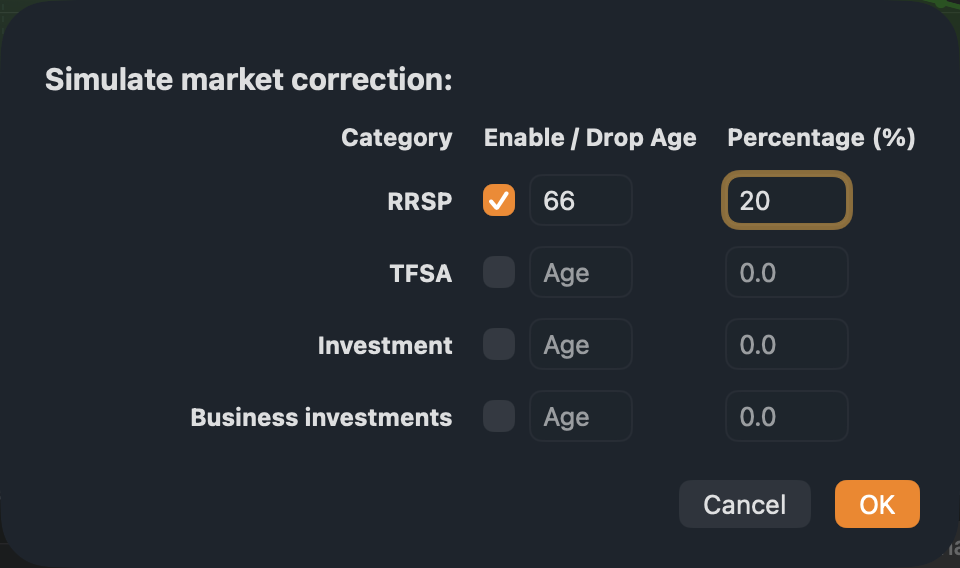
The account loses that share of its value at the start of that year, and the projection carries on from the lower balance. Untick the account to remove the drop. For many possible futures at once, use the stress test.
Copy a budget to another strategy
A budget takes time to build, so you can reuse it.
- Right-click the strategy that has the budget and choose Copy Budget to Strategy….
- Choose the strategy to copy to. The list holds every other strategy of every client, shown as “Client — Strategy”.
- Click Copy.
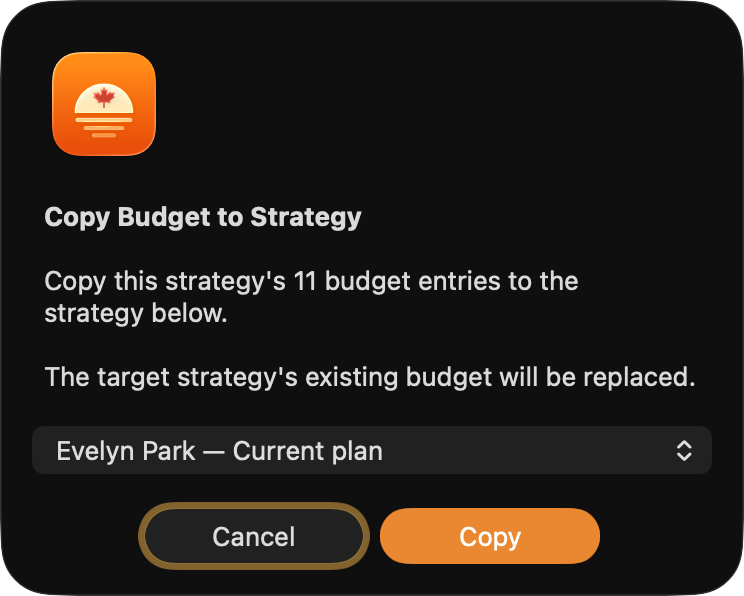
The copy replaces the other strategy’s budget; it does not add to it.
How many strategies
Strategies per client: Pro 3, Advisor unlimited. See Plans and purchases.