 Retirement Planner Guide
Getting started
Retirement Planner projects every year of a retirement in Canada: CPP, OAS and GIS, pensions, RRSPs and RRIFs, TFSAs, investments, property and debt, after federal and provincial tax. This chapter covers installing the app, the first launch and the free trial.
What you need
- A Mac with macOS 14 Sonoma or later.
- An internet connection now and then. The app works offline; it checks for updated tax and benefit figures at most once a week and downloads them in the background.
- A Pro or Advisor subscription, or Pro bought outright. Every subscription starts with a one-week free trial. See Plans and purchases.
Install the app
- Open the App Store on your Mac and search for Retirement Planner, or follow the link on the product page.
- Click Get, then Install.
- Open Retirement Planner from Launchpad or the Applications folder.
No account or sign-in is needed. Your plans are kept in a data file on your Mac; see Where your data is kept.
The first launch
Three things happen the first time you open the app:
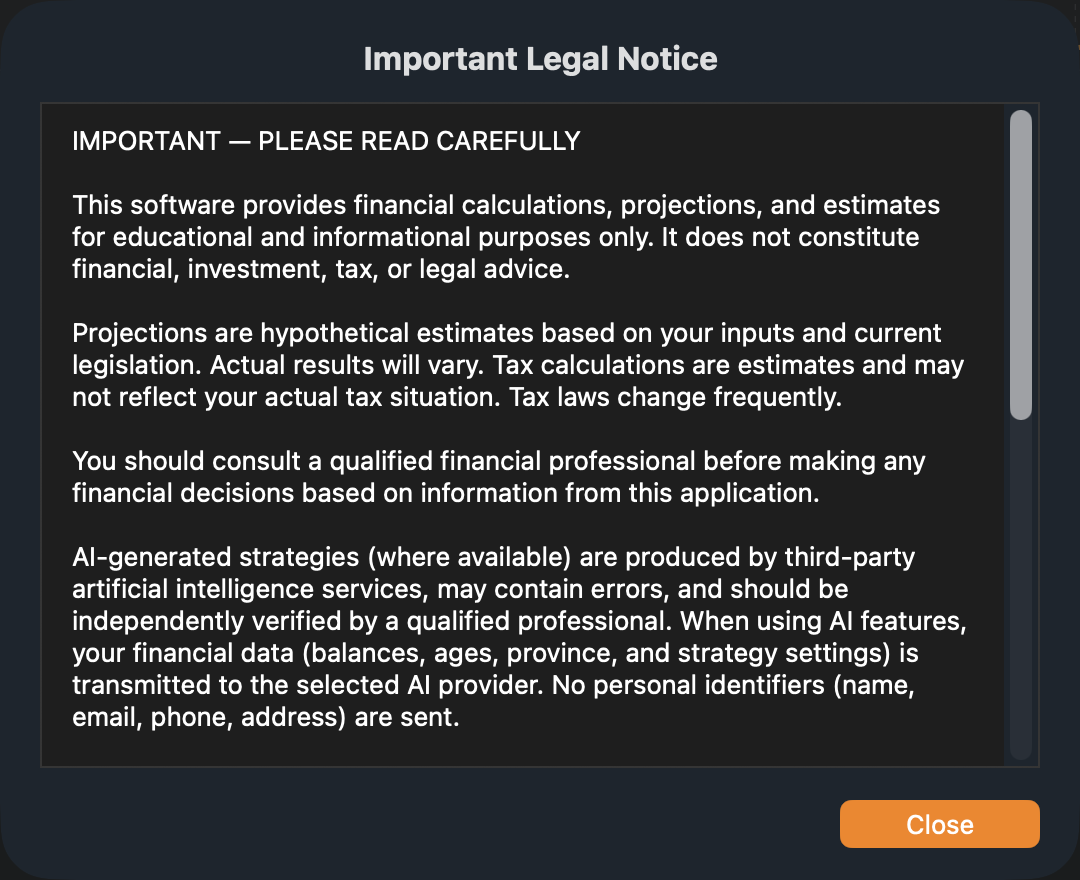
- The legal notice. Read it and click I Understand & Accept. Retirement Planner makes estimates for planning; it does not give financial, tax or legal advice. You can read the notice again at any time from Help ▸ Legal Notices.
- The guided tour, described below.
- The plans window, where you start the free trial.
The guided tour
The tour walks through the app in 16 short steps. It dims the window and points at one part of it at a time, with a short explanation beside it.
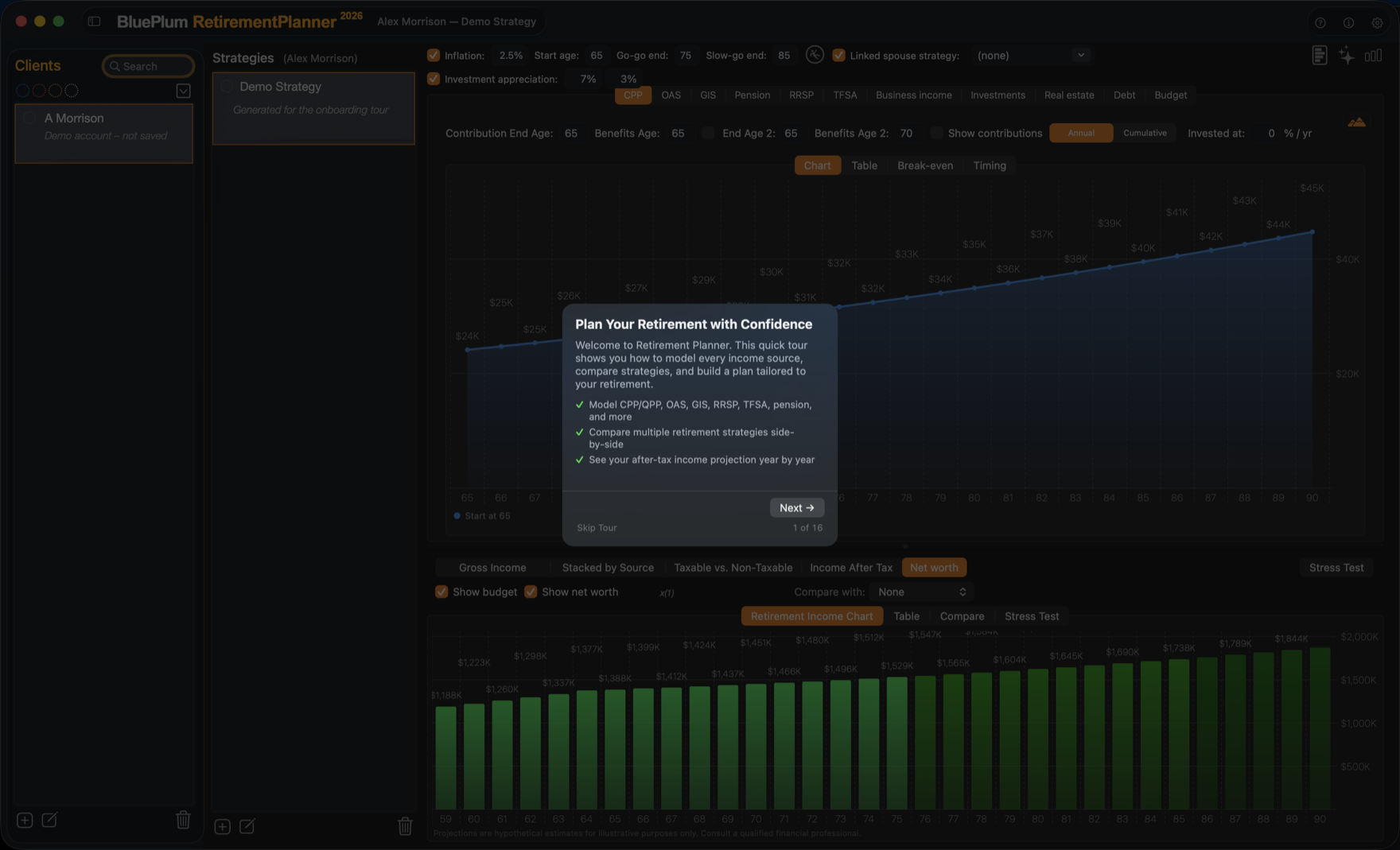
- Click Next → and ← Back to move between steps, or Skip Tour to leave.
- The tour uses a made-up client, Alex Morrison, so the charts have something to show. This client is never saved and disappears when the tour ends.
- If you quit part way through, the tour picks up where you left off the next time.
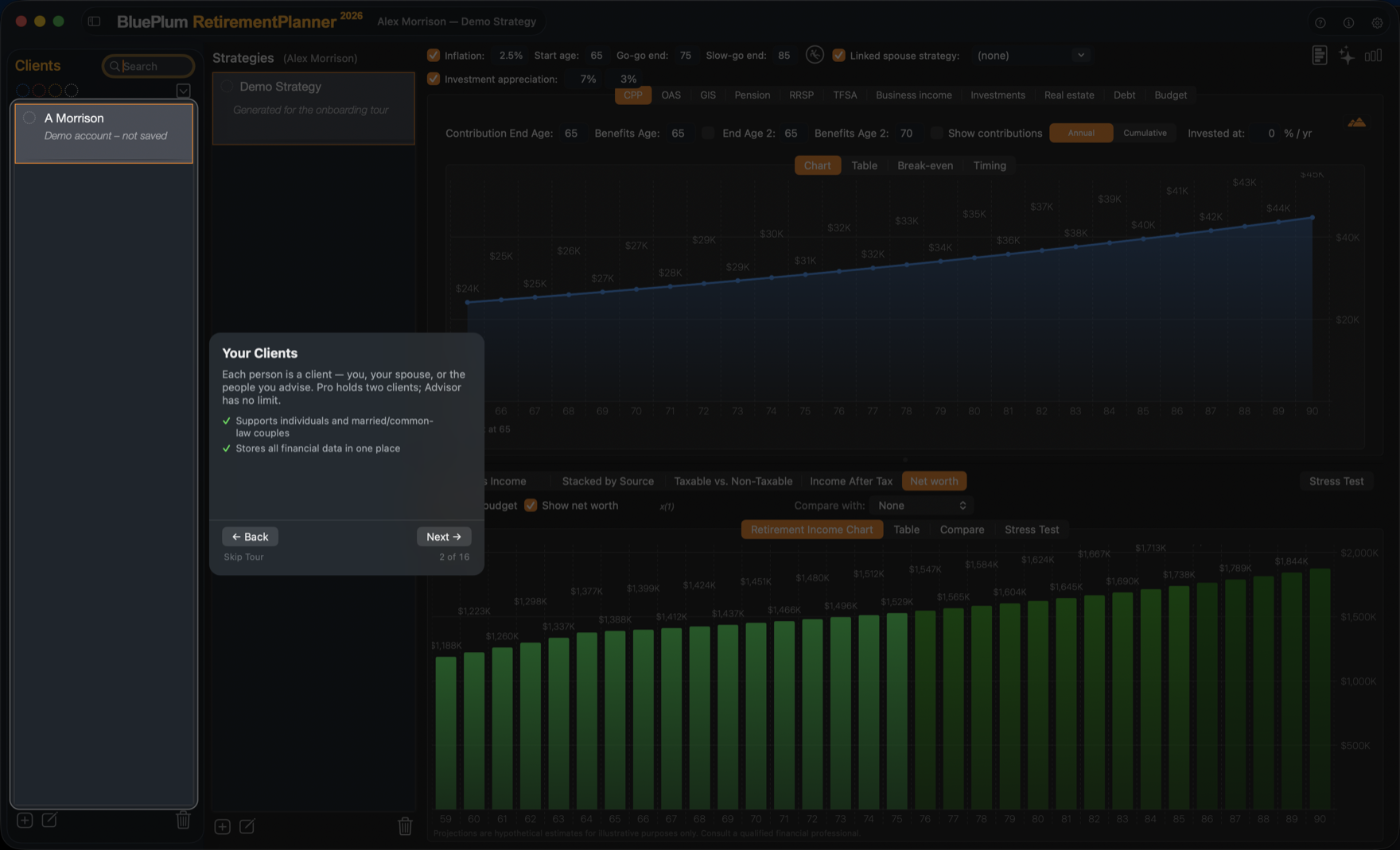
To see the tour again, choose Help ▸ Take a Tour, or click the ? button at the top right of the window.
Start the free trial
After the tour, the plans window opens. Choose Pro or Advisor, then Yearly, and click the button to start the free trial. You are not charged until the trial ends, and you can cancel before then in System Settings ▸ Apple ID ▸ Subscriptions.
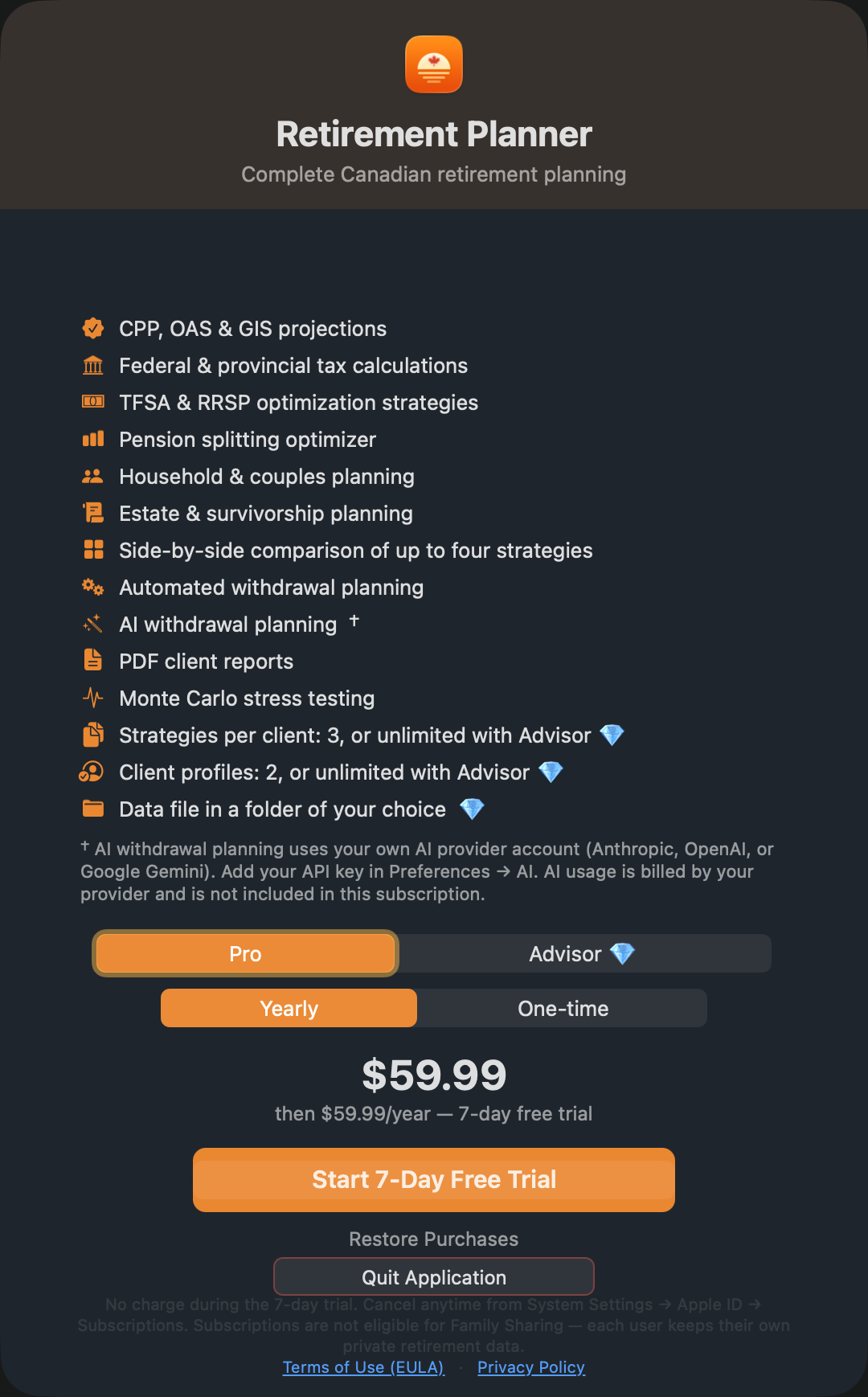
The app needs an active plan or trial to open your data. If a subscription ends, nothing is deleted: your clients and strategies come back as soon as you renew or restore the purchase.
Next steps
- Take a tour of the window to learn where things are.
- Read How a plan works for the ideas behind the numbers.
- Add your first client, then build a strategy.