 Retirement Planner Guide
Preferences
Preferences hold the settings that apply to the whole app: appearance, saving, the shortfall tolerance, where the data file is kept, the AI provider and your subscription. Chart settings are set separately, from the strategy’s settings bar.
Choose Retirement Planner ▸ Settings... (⌘,) or click the gear at the top right of the window. Click General, AI or Subscription at the top to switch panes.
General
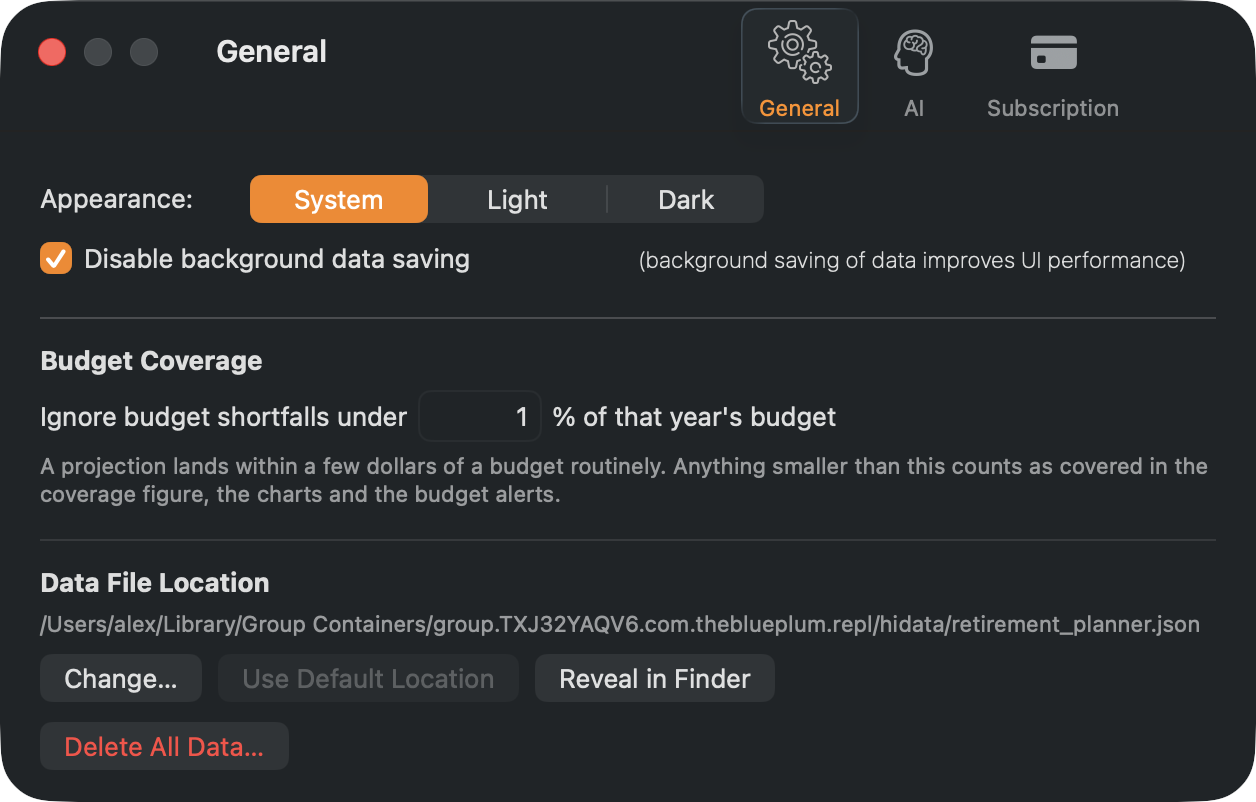
| Setting | What it does |
|---|---|
| Appearance | System, Light or Dark. |
| Disable background data saving | Ticked (the default): every change is saved straight away. Unticked: changes are saved every two minutes and when you quit, which can feel quicker with very large plans; the strip under the toolbar turns orange while there are unsaved changes. Either way, it flashes green when the file has been saved. |
| Ignore budget shortfalls under … % of that year’s budget | How big a gap must be to count as a shortfall in the plan status, the charts, the reports and the experiments’ results — 1% unless you change it, and never less than $50. Enter 0 to count every dollar. |
| Data File Location | Where the data file is kept. See Where your data is kept. |
| Delete All Data… | Removes every client and strategy, after saving a safety copy. See Start over. |
AI
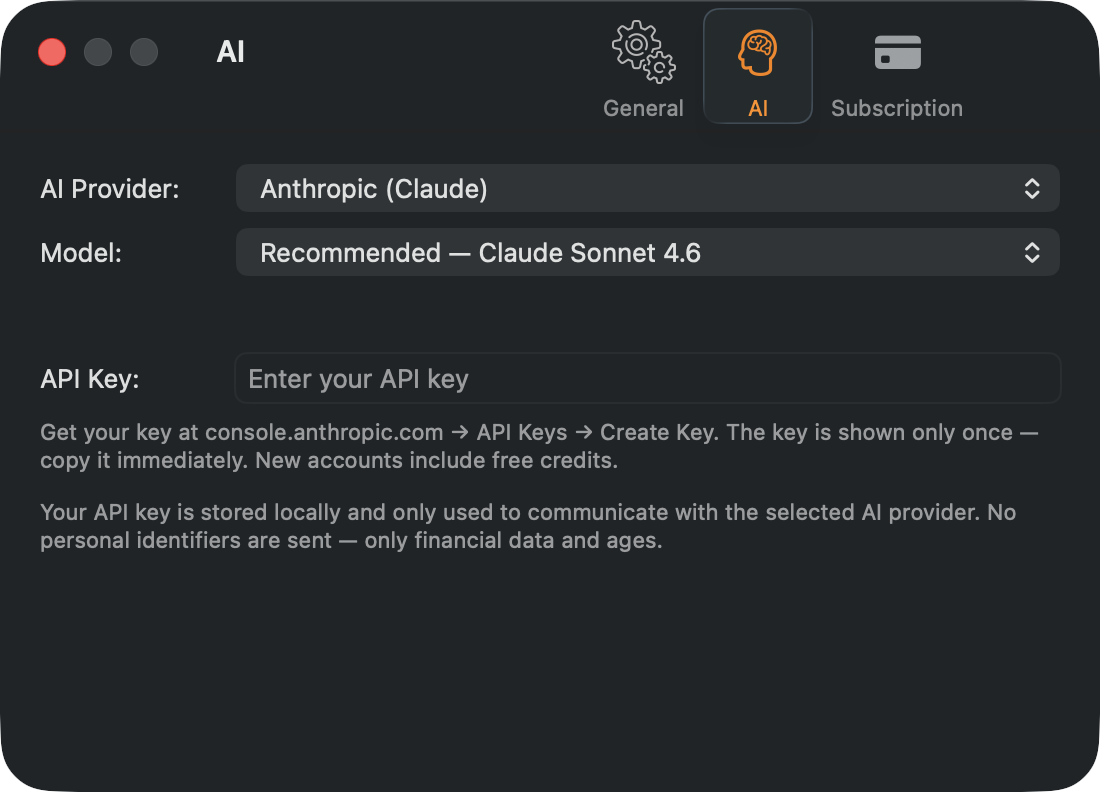
The AI provider, model and API key used by the AI withdrawal strategy. See AI withdrawal strategy.
Subscription
Your plan and its status, with Manage Subscription, Restore Purchases and the upgrade button. See Plans and purchases.
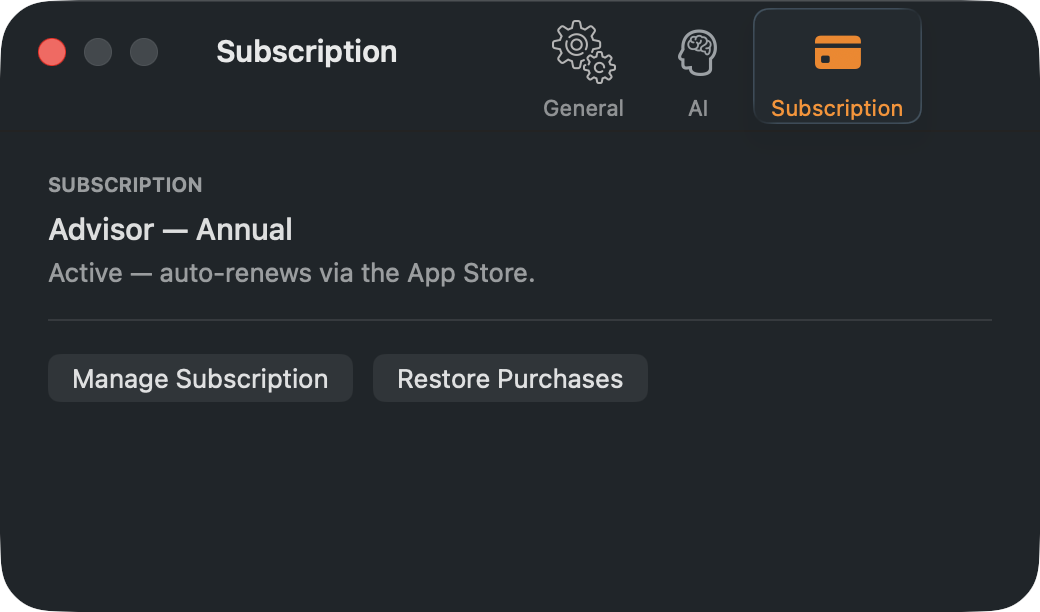
Chart Settings
Click the chart button at the right end of the strategy’s settings bar to change how every chart looks. Changes show straight away; click Close when done.
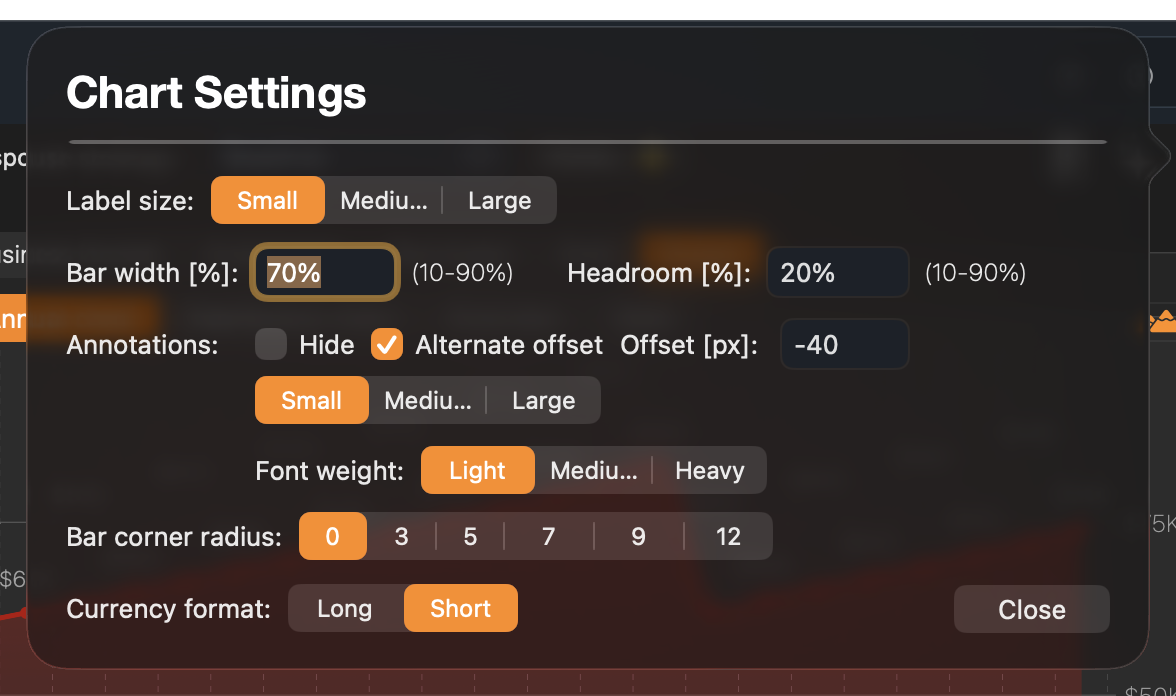
- Label size — the size of axis labels.
- Bar width [%] and Headroom [%] — how wide the bars are, and the space left above the tallest bar for its label.
- Annotations — the amounts above the bars: Hide them, or set their size, Alternate offset to stagger crowded labels, and Offset [px].
- Font weight, Bar corner radius.
- Currency format — Long ($61,256) or Short ($61K).