5. Application Preferences#
Open the Preferences window from the menu bar via Retirement Planner → Settings (or press ⌘,). The window has three tabs: General, AI, and Subscription.
5.1 General#
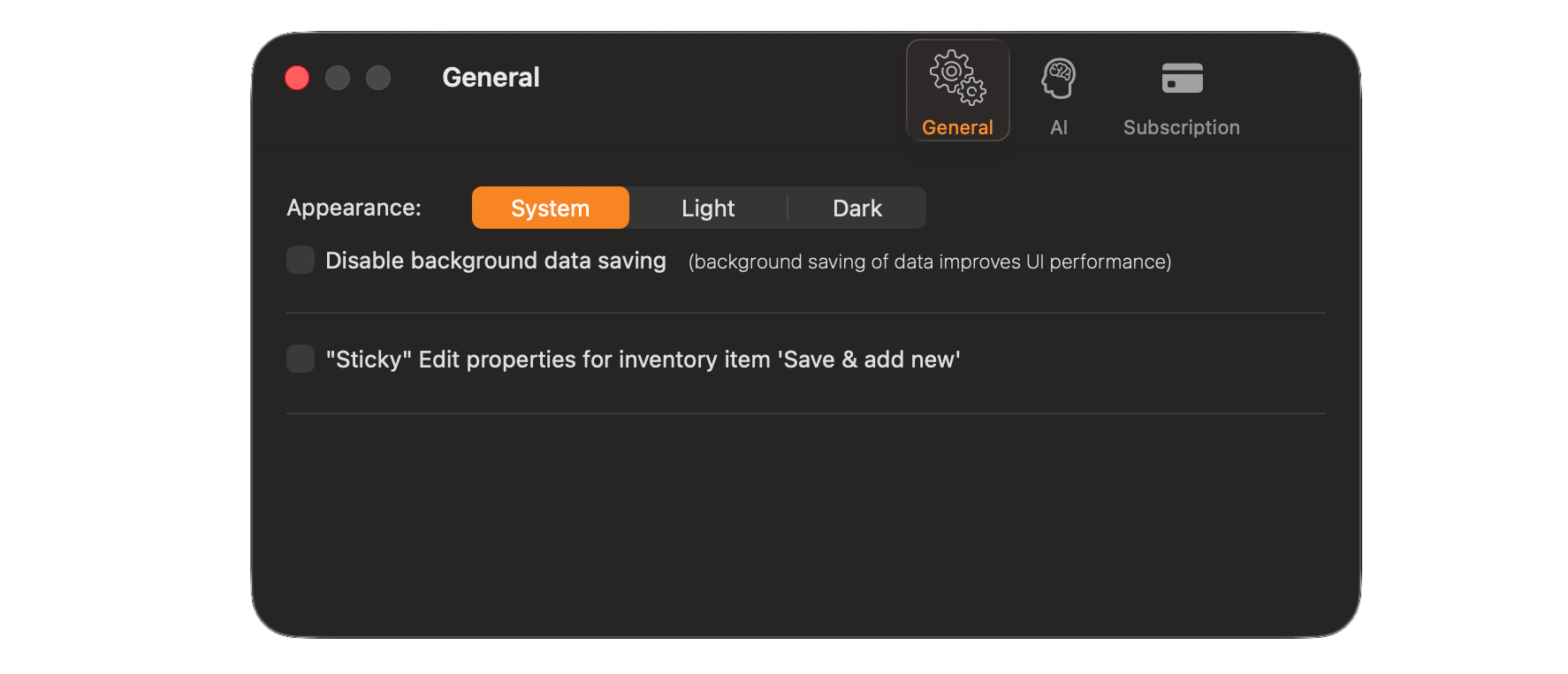
Appearance Choose between three display modes using the segment control:
- System — follows the macOS system-wide Light or Dark mode setting (default)
- Light — always uses the light appearance regardless of system settings
- Dark — always uses the dark appearance regardless of system settings
Disable background data saving When unchecked (the default), the app saves client data to disk in the background at regular intervals. This improves UI responsiveness by keeping save operations off the main thread. Check this option only if you experience issues related to background saving, as disabling it means data is saved less frequently.
“Sticky” Edit properties for inventory item ‘Save & add new’ When checked, the edit form retains its field values after using the Save & add new action — useful when entering multiple similar records in succession. When unchecked, the form resets to defaults after each save.
Notify when new updates are available When checked (the default), the app tells you when a newer version has been published. Uncheck it to suppress those notifications.
Show the application intro screen on the next start When checked, the guided tour described in Section 2.5 runs again the next time you launch the app. Use this to revisit the walkthrough after dismissing it.
Data File Location#
This section shows where your client data file is stored and lets you move it. The full path is displayed beneath the heading — hover over it to see the complete path if it is truncated.
| Control | What it does |
|---|---|
| Change… 💎 | Choose a different folder for your data. A hidata subfolder is created inside the folder you pick. Advisor only. |
| Reset | Return to the app’s default storage location. Enabled only while a custom location is in use. Advisor only. |
| Reveal | Open the current data folder in Finder. Available on all plans. |
| Delete All Data… | Permanently erase all clients, strategies, and settings. |
Changing location when data already exists. If the folder you select already contains a data file, the app asks how to proceed:
- Use Existing Data — load the file that is already there and leave your current data where it is.
- Move Current Data Here — overwrite the file in the destination with the data you currently have open.
Resetting to the default location offers the same choice in reverse (Use Default Data / Move Current Data Back).
Warning: Delete All Data… is irreversible and is not limited to the current client — it erases everything. Make sure you have a backup before using it.
Tip for advisors: Pointing the data file at a synced folder (iCloud Drive, Dropbox, a network share) lets you reach the same client book from more than one Mac. Open the file on only one Mac at a time — simultaneous edits from two machines can cause the sync service to overwrite one set of changes.
5.2 AI#
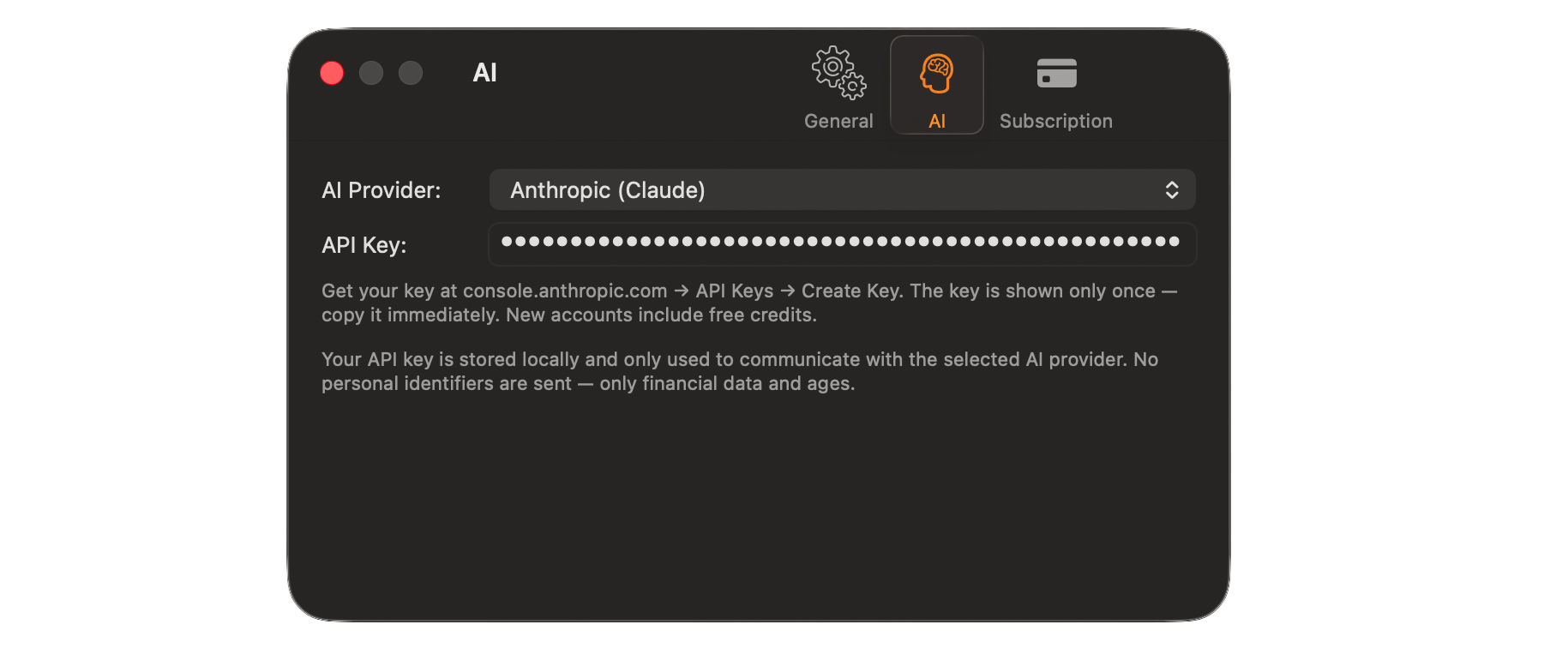
The AI tab configures the connection to the AI service used for AI-assisted income optimization. AI features require a Pro or Advisor subscription.
AI Provider Select the AI service to use from the dropdown. Currently supported: Anthropic (Claude).
API Key Enter your personal API key for the selected provider. The key is masked after entry for security.
To obtain an Anthropic API key:
- Go to console.anthropic.com
- Navigate to API Keys → Create Key
- Copy the key immediately — it is shown only once
- Paste it into the API Key field
Privacy: Your API key is stored locally on your Mac and is never transmitted to any server other than the selected AI provider. When the app sends data to the AI, only financial figures and ages are included — no personally identifiable information is sent.
New Anthropic accounts include a small amount of free credits, which is sufficient for initial testing.
5.3 Subscription#
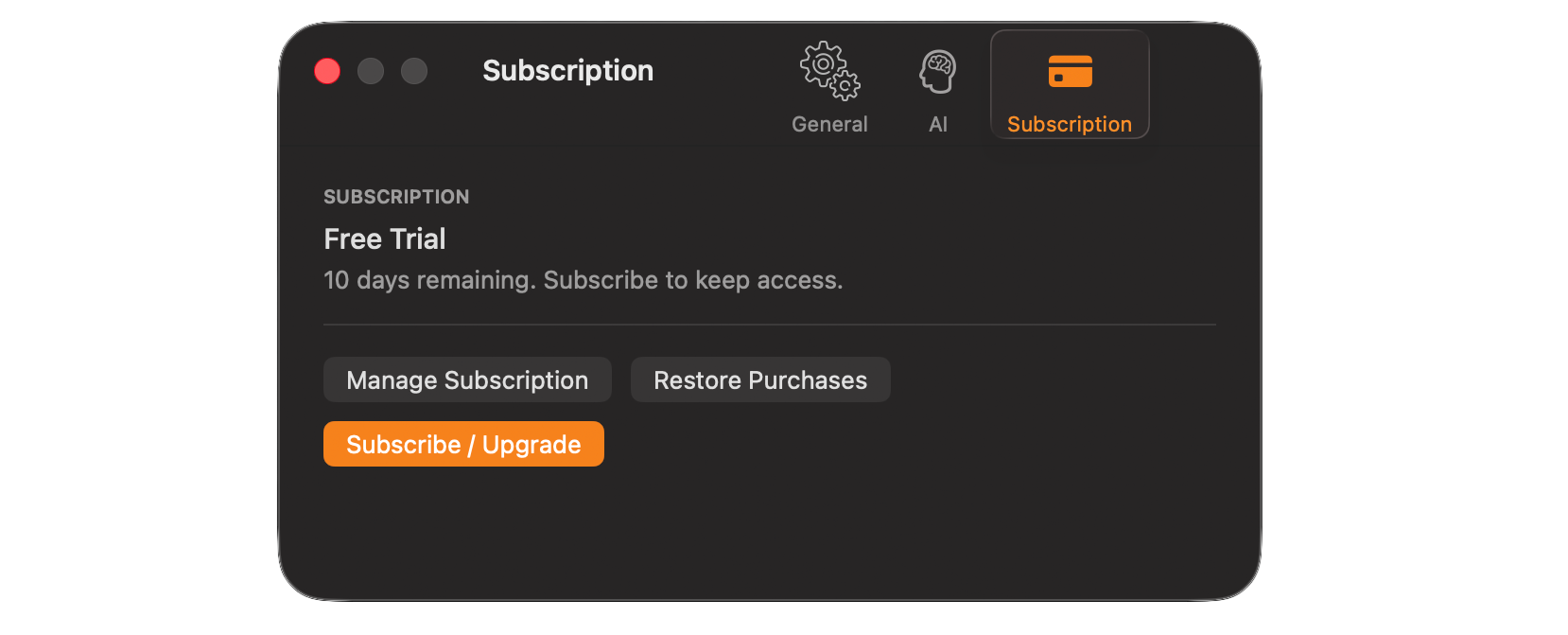
The Subscription tab displays your current plan status and provides controls for managing your subscription.
Current status The top of the tab shows your active plan (or trial status) and, if on a free trial, the number of days remaining before access is restricted.
Manage Subscription Opens your Apple ID subscription management page where you can view billing details, change plan, or cancel. Subscriptions are billed through the Mac App Store and managed via System Settings → [Your Name] → Subscriptions.
Restore Purchases Use this if you have already subscribed on another Mac or after reinstalling the app and your subscription is not being recognized. This contacts the App Store to verify and restore your entitlements.
Subscribe / Upgrade Opens the in-app paywall where you can choose a plan (Personal, Pro ⭐, or Advisor 💎) and subscribe. See Section 3 — Subscription Plans for a full feature comparison.
5.4 Chart Settings#
Chart Settings controls the visual appearance of every chart in the application. Open the panel by clicking the Chart Settings button in the chart toolbar. Changes take effect immediately across all chart types and strategies.
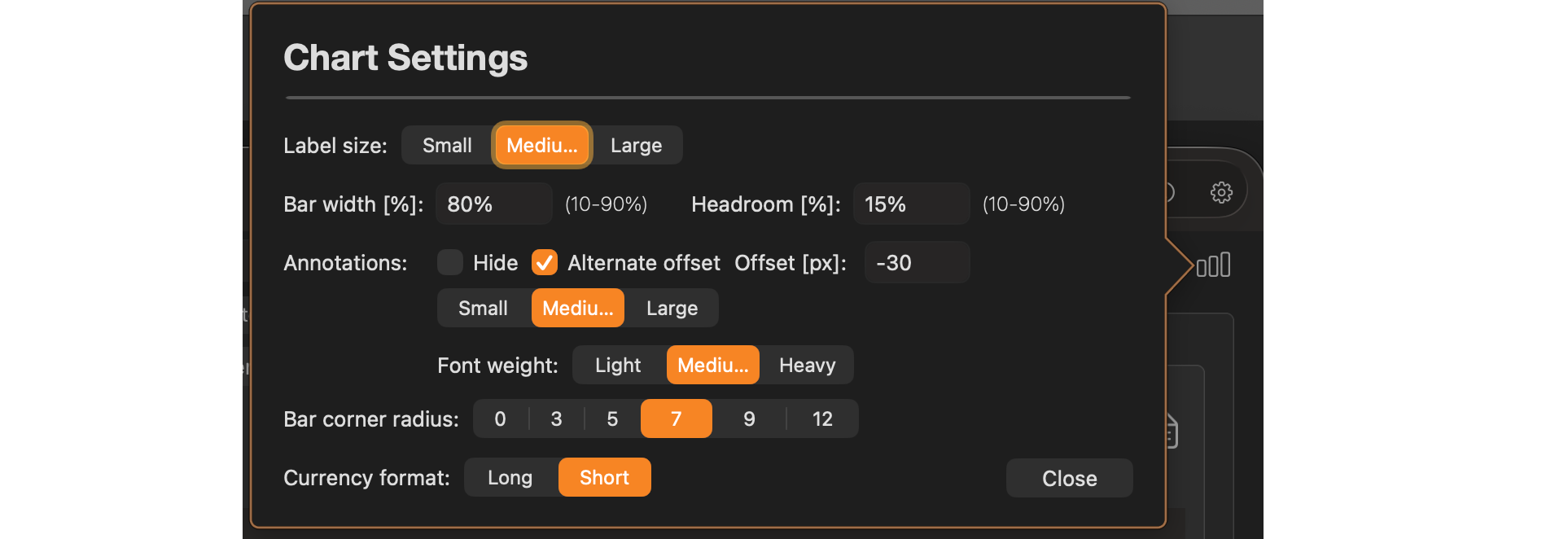
| Setting | Options | Description |
|---|---|---|
| Label size | Small / Medium / Large | Controls the font size of value labels displayed on chart bars. |
| Bar width [%] | 10–90% | Sets the width of each bar relative to the available column space. Lower values add more white space between bars; higher values produce thicker, denser bars. |
| Headroom [%] | 10–90% | The percentage of vertical space reserved above the tallest bar. Increasing headroom prevents labels from being clipped at the top of the chart. |
| Annotations — Hide | Checkbox | When checked, all value labels are hidden from the chart, producing a clean chart without any numbers. |
| Annotations — Alternate offset | Checkbox | When checked, adjacent labels are staggered vertically to reduce overlap on years where multiple income sources stack closely. |
| Annotations — Offset [px] | Numeric | Fine-tunes the vertical position of labels relative to their bar. Negative values move labels upward; positive values move them downward. |
| Annotations — Size | Small / Medium / Large | Sets the font size of annotation labels independently of the global label size. |
| Annotations — Font weight | Light / Medium / Heavy | Controls the stroke weight of annotation text. Heavy is useful for high-resolution displays or presentations. |
| Bar corner radius | 0, 3, 5, 7, 9, 12 | Rounds the top corners of each bar. A value of 0 produces rectangular bars; higher values produce pill-shaped bars. |
| Currency format | Long / Short | Long displays full dollar amounts (e.g. $123,456). Short abbreviates large values (e.g. $123K) to reduce label clutter on charts with high income figures. |
All Chart Settings are saved automatically and persist across app restarts. They apply globally — there is no per-strategy chart appearance setting.
 Blue Plum Software